







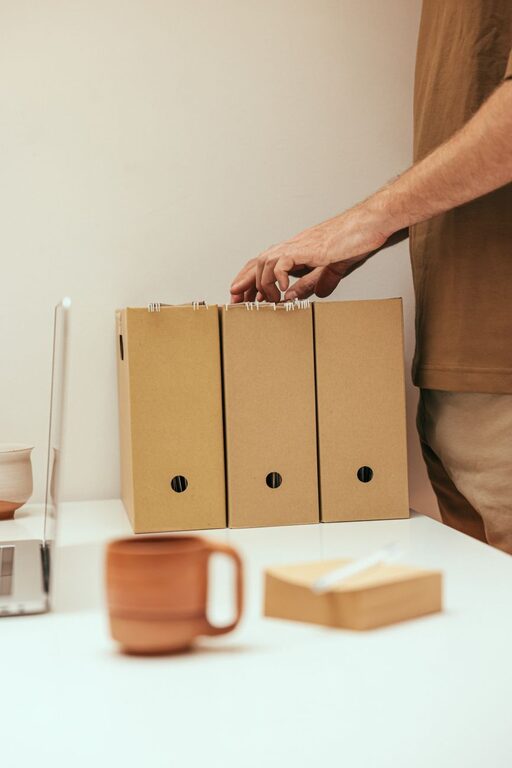
Keeping your computer files organized is an essential habit that can help you work more efficiently and reduce frustration. Whether you have documents, photos, videos, or software files scattered across your desktop or various folders, spending a bit of time organizing can make a big difference. In this post, we’ll explore practical tips to help you keep your files neat, easy to locate, and secure.
Why Organizing Your Files Matters
A cluttered computer can slow you down, make it harder to find what you need, and sometimes even impact system performance. Organized files improve your workflow, reduce duplicate files, and make backups simpler. Plus, it just feels good to have a tidy digital workspace!
Start with a Clean Slate
Before diving into organizing, it’s helpful to take stock of what you have:
– Identify cluttered areas: Look at your desktop, downloads folder, and any other places where files tend to pile up.
– Delete unnecessary files: Remove duplicates, old downloads, and files you no longer need.
– Backup important data: Create a backup of your important files before making big changes to avoid accidental loss.
Choose a Folder Structure That Works for You
A clear folder hierarchy is the backbone of good organization. Here are some ideas for creating an effective folder system:
1. Keep It Simple and Consistent
Create main folders based on broad categories such as:
– Work
– Personal
– Photos
– Music
– Projects
Within these main folders, create subfolders for specific topics, dates, or clients. For example:
“`
Work
├── Reports
├── Presentations
Personal
├── Taxes 2023
├── Travel Plans
Photos
├── 2023 Vacations
├── Family Events
“`
Avoid having too many nested layers — three levels deep is usually enough to stay organized without making navigation complex.
2. Use Clear and Descriptive Names
Choose concise folder and file names that make it easy to understand what’s inside without opening them. Avoid vague names like “stuff” or “misc”.
For files, consider including the date (in YYYY-MM-DD format) and a brief description. For example: `2024-06-01_ProjectProposal.docx`.
Make Use of Built-In Tools and Features
Most operating systems include useful features to help with file management:
Search Functionality
Learn to use your computer’s search function effectively by including keywords or date ranges. This can save time locating files without browsing folders.
Tags and Labels
Some systems, like macOS and certain Windows versions, allow you to tag files with colors or keywords — handy for grouping related files across folders.
Favorites or Quick Access
Pin frequently used folders or files to your favorites or quick access section for easy retrieval.
Establish a Routine to Maintain Organization
Organizing your files is not a one-time task. Creating simple habits will help you keep things tidy:
– Regularly clean your downloads folder.
– Sort new files immediately into the right folder.
– Schedule a monthly or quarterly “file review” to delete outdated files.
– Use cloud storage services to automatically sync and back up important files.
Backup Your Organized Files
Backing up your data protects you from hardware failures, accidental deletions, or malware threats. Consider these backup options:
– External hard drives: Simple and offline backups.
– Cloud storage: Services like Google Drive, Dropbox, or OneDrive offer automatic syncing and accessibility from multiple devices.
– Automated backup software: Some software can schedule regular backups without manual effort.
Tips for Specific File Types
Certain files may benefit from specialized organization:
Photos and Videos
– Sort by date, event, or location.
– Use photo management tools or apps that can tag and categorize images automatically.
Documents
– Separate by type — invoices, reports, contracts.
– Use PDFs for finalized versions to avoid accidental edits.
Downloads
– Develop a habit of sorting downloads right after downloading.
– Clear this folder frequently to prevent clutter.
Avoid Common Mistakes
– Don’t hoard every file: Delete what you no longer need to reduce clutter.
– Avoid saving everything to the desktop: This can get messy quickly and slow down your computer.
– Don’t use inconsistent naming conventions: This creates confusion and makes searching harder.
– Don’t forget to back up: An organized system is only effective if your files are safe.
Conclusion
Organizing your computer files may seem like a daunting task, but by starting small and following these practical tips, you can create a system that works for you. With a clean, well-structured digital workspace, you’ll save time, reduce stress, and boost productivity. Start today by tackling one folder or file category—you’ll be amazed at how much easier file management can be!